
Attention: We provide deliveries for livestock and farm products
Interest: Find a new job. Join the team. Become a driver.
Desire: If you love working outside, driving, and enjoying being your own boss, we have a job for you! Get on board with one of the fastest-growing enterprises in South Africa. You will be responsible for transporting livestock, fruit and veg as well as grains from local farmers into depots within your city. An example of your inbound route would go something like this:
- You will deliver eggs to the hatchery and collect day-old chicks from the same hatchery
- You will deliver these chicks to various drop-off points that are pre-planned.
- You will use the GroDriver app which will calculate your distance and notify us of collection and delivery.
You’ll be responsible for delivering day-old chicks for GroChick which is the poultry division of GroSpace. You will be responsible for the delivery of healthy fertile eggs from farms to hatcheries around Gauteng, Limpopo, Mpumalanga, and KwaZulu Natal (KZN). You will be given a GroShop which is an online shop where customers can place orders at any time of the day or night on your route schedule and pay for their order before delivery.
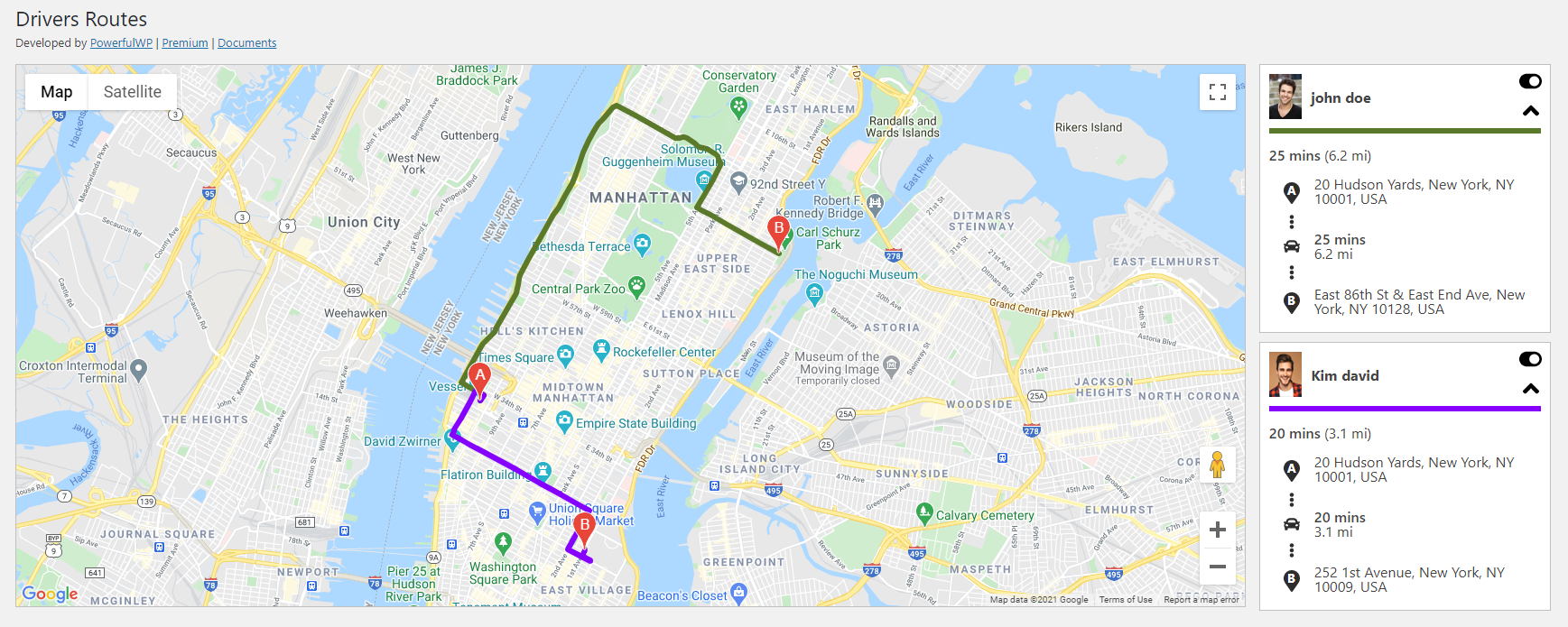
Drivers Routes
Admin can see all drivers’ routes, duration, and distance on a map.
Assign GroDrivers to Orders
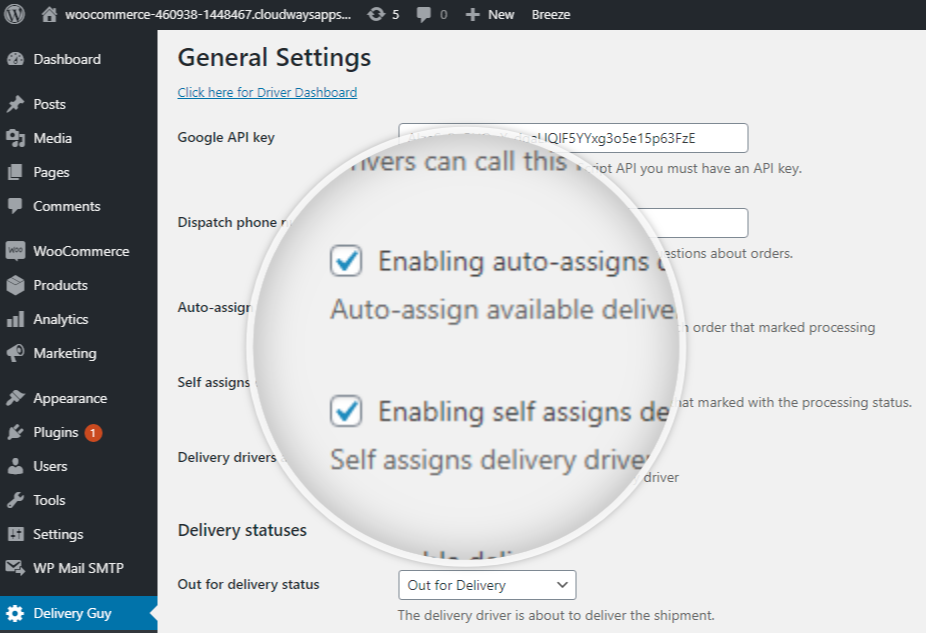
Auto-assign a GroDriver
Admin can auto-assign available GroDriver to orders by the following methods:
- Auto-assign by the number of orders each GroDriver has.
- Auto-assign by shipping zip code, city, state, country, and the number of orders each GroDriver has.
- Auto-assign by shipping city.
- Auto-assign by pickup zip code, city, state, country, and the number of orders each GroDriver has.
- Auto-assign by pickup city.
- Auto-assign by shipping city or pickup city.
Drivers can Claim Orders
The admin can let the GroDriver claim orders on the GroDriver panel with the following permissions:
- All orders.
- When shipping city is the same as GroDriver city.
- When pickup city is the same as GroDriver city.
- When pickup city or shipping city is the same as GroDriver city.
Bulk Assign GroDriver to Orders
Admin can bulk assign GroDrivers to orders on the admin panel.
Manually Assign GroDriver to Order
Admin can manually assign GroDriver to orders in the admin panel.
GroDriver boasts a Mobile-Friendly Panel
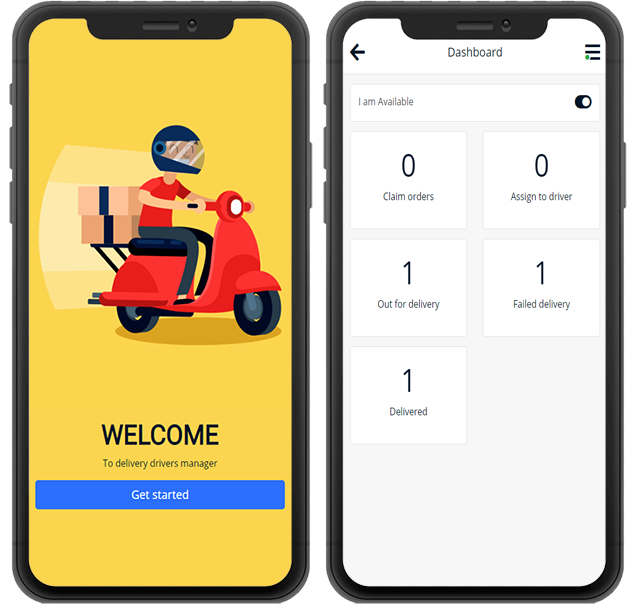
The GroDriver’s panel is an app-like experience for GroDrivers to manage all deliveries from their mobile.
Claim Orders
GroDrivers can claim orders.
Update Delivery Statuses
GroDrivers can update order statuses to delivered or failed attempts and leave comments on orders.
Route Planning and Navigation
GroDrivers can plan their route and navigate to their destination.
Call Customers or Dispatch
GroDrivers can quickly call customers or dispatch.
GroDriver Panel Themes
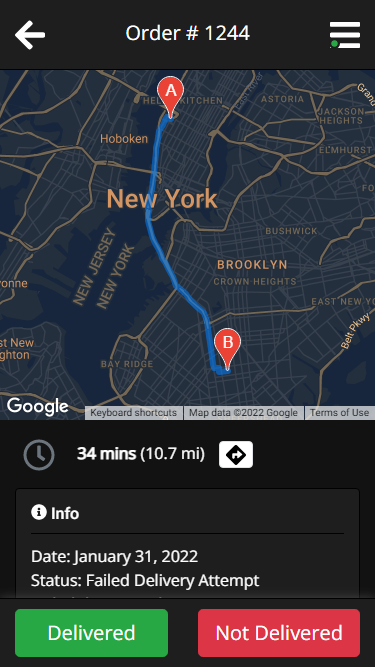
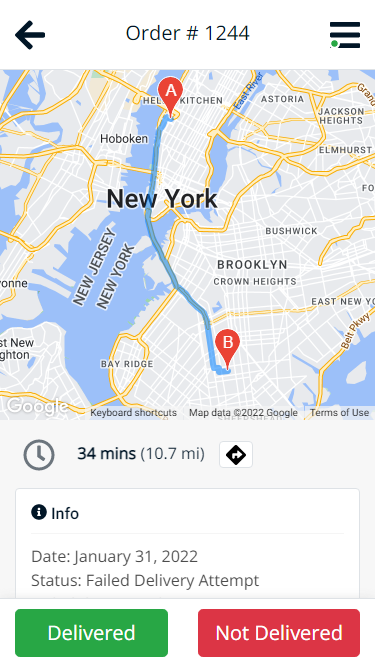
The GroDrivers’ panel has light and dark modes, which the GroDrivers can choose on the panel settings.

Route Planning
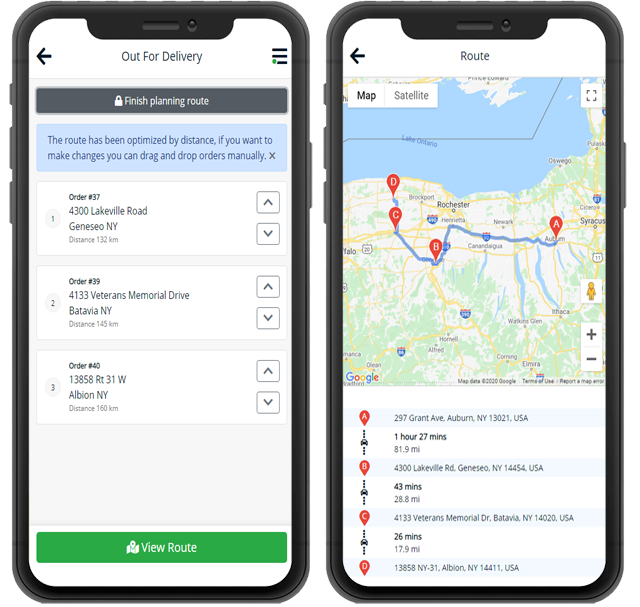
The GroDriver application plans routes by distance or with manual planning.
Optimize Route by Distance
GroDrivers can optimize their routes by distance and find optimal routes to their destination. They can choose four travel modes in directions – Driving, Walking, Bicycling, and Transit.
Plan Route Manually
GroDriver can plan their routes manually to get the best route they want.
Navigation
GroDrivers can navigate with Waze, Apple Maps, and Google Maps.
GroDrivers Order Page
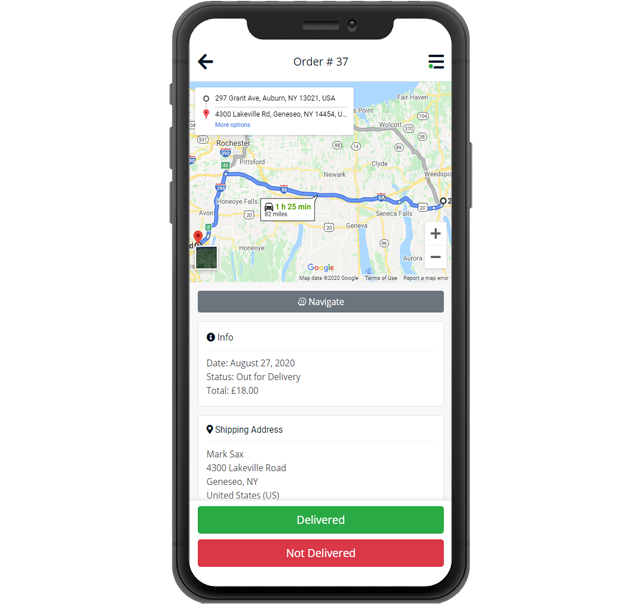
GroDrivers can view available orders that they can claim on the order page of the GroDriver panel.
Destination Map And Navigation
GroDrivers can view the address on the map and navigate to the destination.
Pickup Location
GroDrivers can see the pickup location, quickly call and navigate to the pickup location.
Call Customer
GroDrivers can quickly call the customer.
Delivery Status Updates
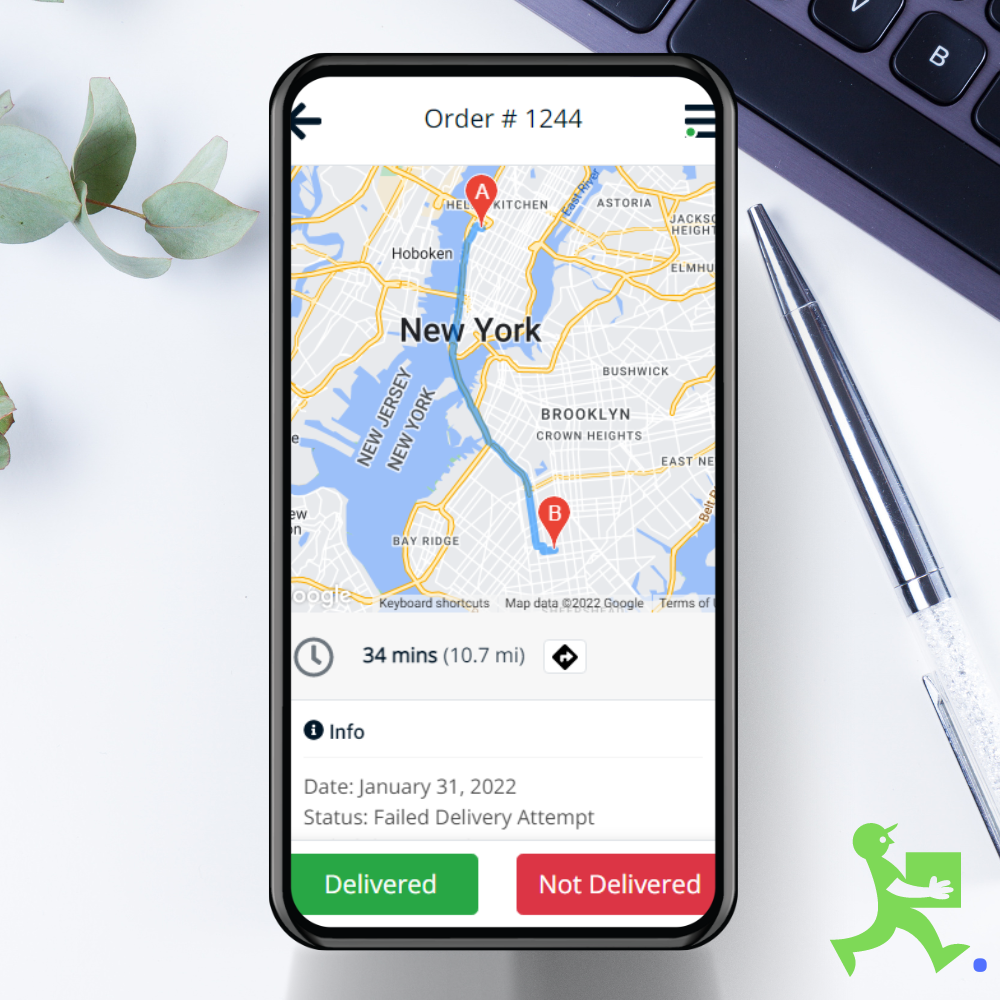
GroDrivers can easily mark order status as delivered or not delivered.
Order Details
GroDrivers can view all order details, including billing address, shipping address, items, comments, and more.
Proof of Delivery
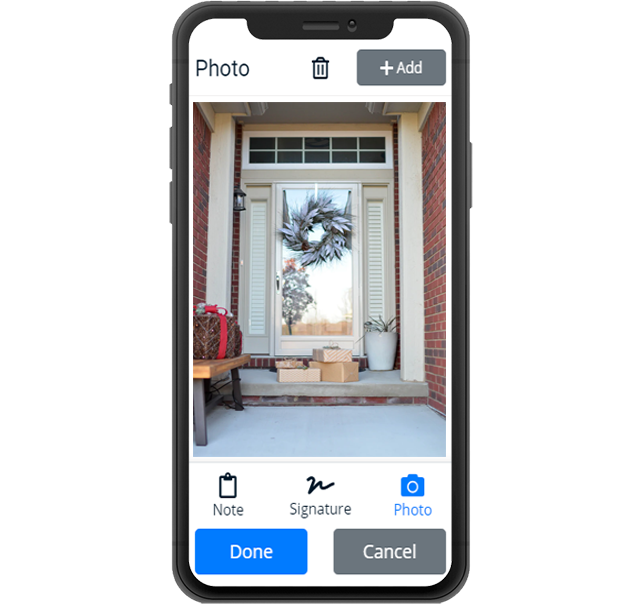
Photo
The GroDriver can take a photo as proof of delivery.
Signature
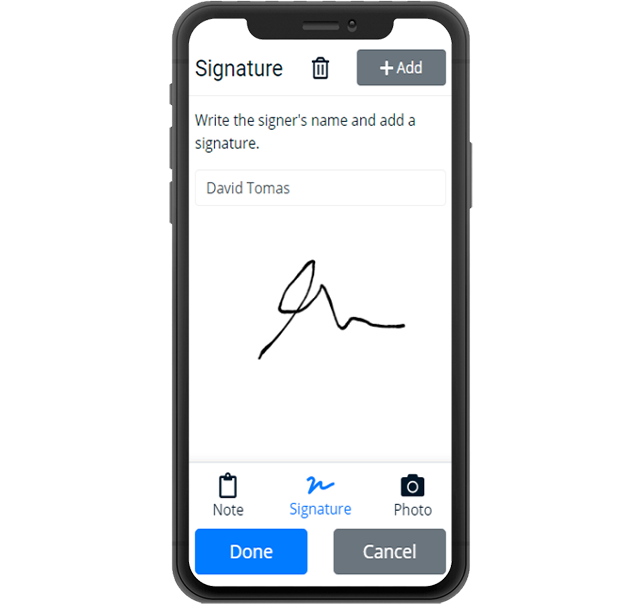
The GroDriver can take the customer’s signature as proof of delivery.
GroDrivers update order statuses
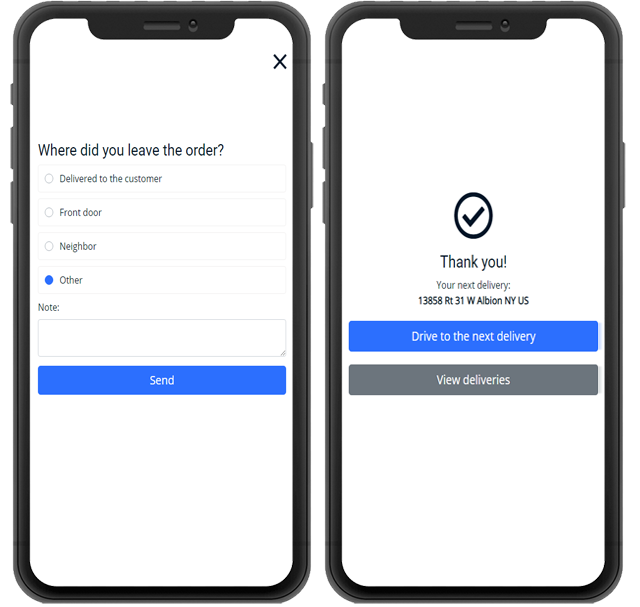
GroDrivers can easily update the order status to delivered or failed delivery.
Mark Order as Delivered or Failed Delivery
The GroDrivers can update the order status to delivered or failed delivery and add comments to the order.
Next Delivery on Route
Once GroDrivers complete their delivery, they can easily navigate to the next destination in their route.
WhatsApp, SMS, and Emails Notifications
WhatsApp, SMS, and emails notify GroDrivers and customers through automated triggers depending on specific events.
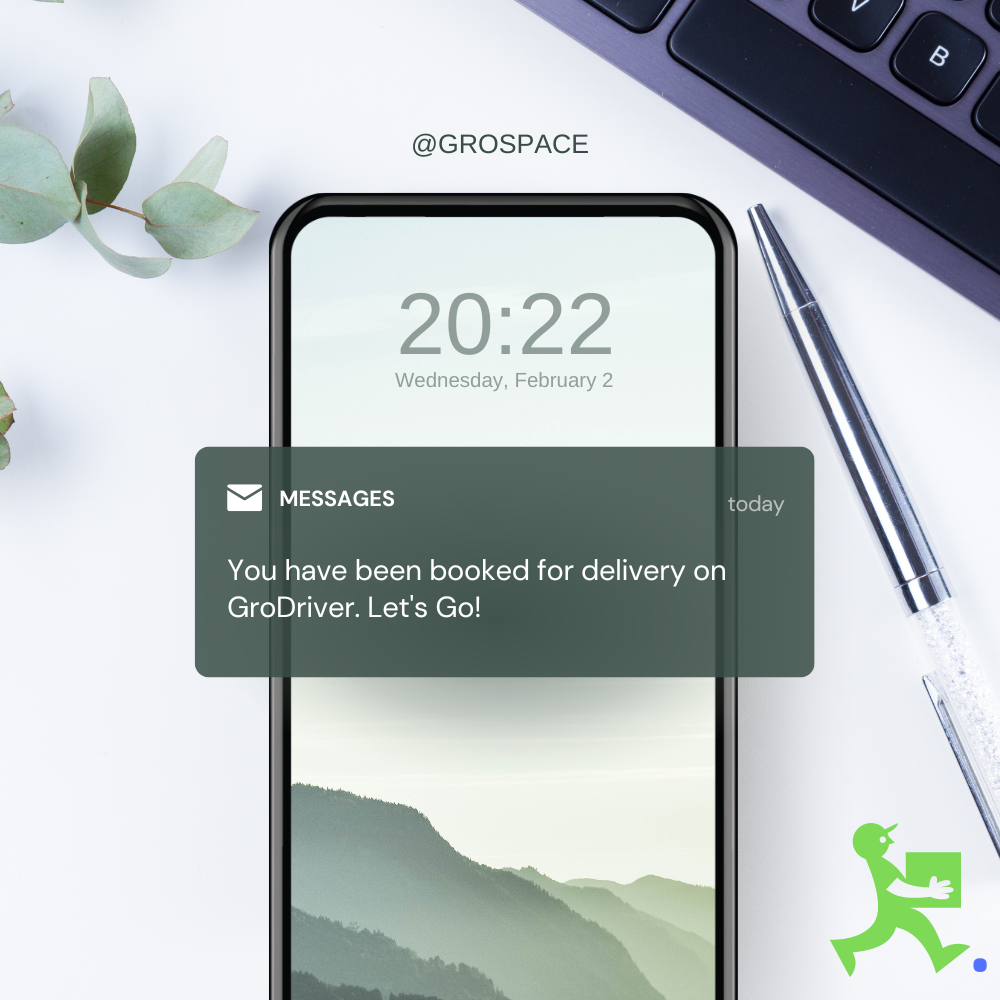
WhatsApp / SMS / EMAIL to the GroDriver
When a GroDriver is assigned to an order, WhatsApp / SMS / EMAIL notifications are sent to the GroDriver.
WhatsApp / SMS / EMAIL to the Customer
- WhatsApp / SMS / EMAIL notifications are sent to the customer when the driver starts the delivery.
- WhatsApp / SMS / EMAIL notifications are sent to the customer when the order is out for delivery.
EMAIL to the Vendor
- An email notification is sent to the vendor when the GroDriver is assigned to an order.
EMAIL to the Admin
- An email notification is sent to the admin when the GroDriver claims a new order.
- An email notification is sent to the admin when the order is delivered.
- This triggers the order to be completed and this is when the farmer is paid. Until then the buyer’s funds are held securely by GroSpace.
Delivery Tracking
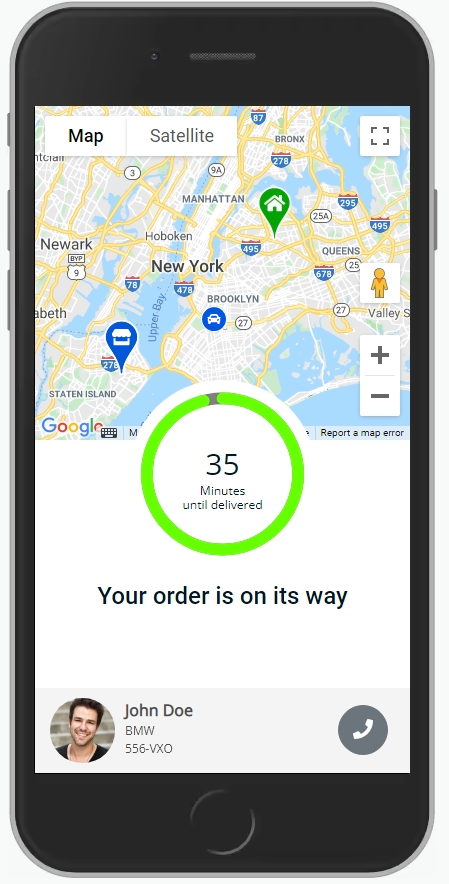
Customers can track their deliveries using the GroDriver app.
Map
The customers can see their home address, store address, and GroDriver’s location on a map. This data is shown live to the customer.
GroDriver details
The customers can see the GroDriver’s image, name, and vehicle details.
Estimated Time of Arrival
Once the GroDriver starts the delivery, the customers get an ETA notification. The customer can see when the delivery will arrive.
Driver Details
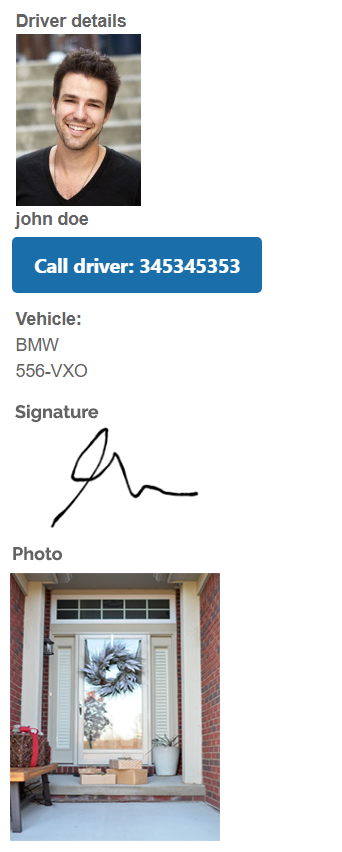
The customer gets the GroDriver’s name and photo.
Call the GroDriver
The customers can quickly call the GroDriver.
Signature
The customers must sign when receiving an order.
Proof of Delivery
The customers can see the photo that the GroDriver took.
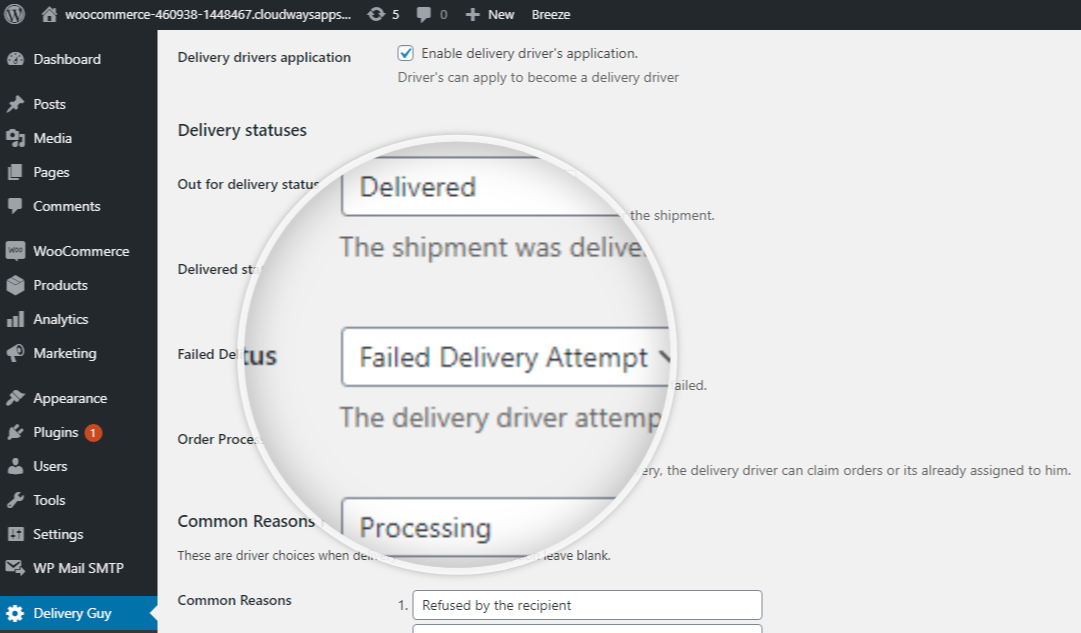
3 Delivery Statuses For Your Orders on GroSpace
Failed Delivery Attempt Status
The GroDriver attempted to deliver but failed.
Out for Delivery Status
The GroDriver is out for delivery with your shipment.
Driver Assigned Status
The GroDriver was assigned to the order.
Manage Deliveries
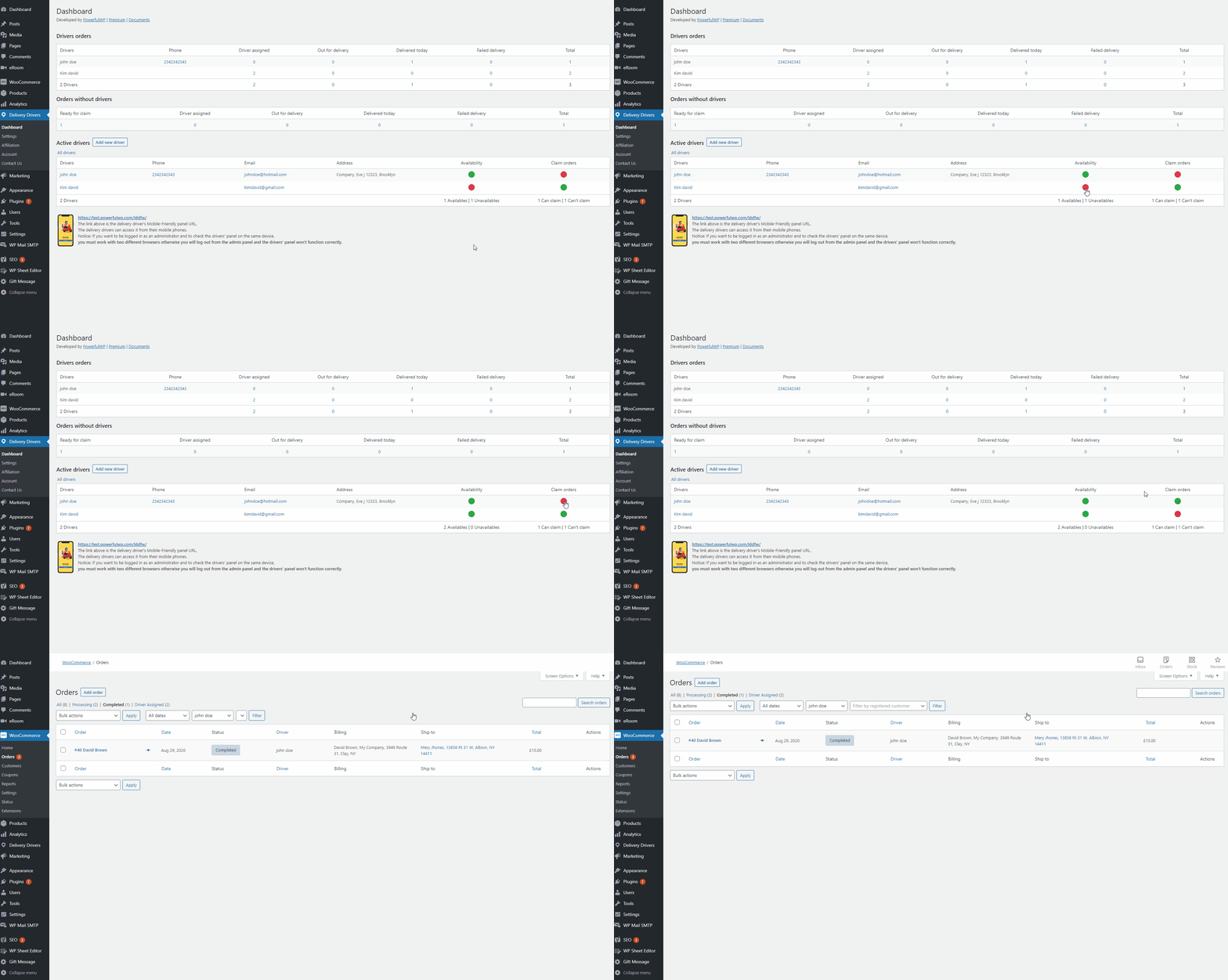
The dashboard lets you have a better view of all your GroDrivers and orders.
Dashboard Includes:
- How many orders each GroDriver has for each order status.
- How many orders are on route with GroDriver.
- How many orders are ready to claim.
- A list of all your active GroDrivers, availability, and claim permissions, You can update all drivers’ statuses in one click.
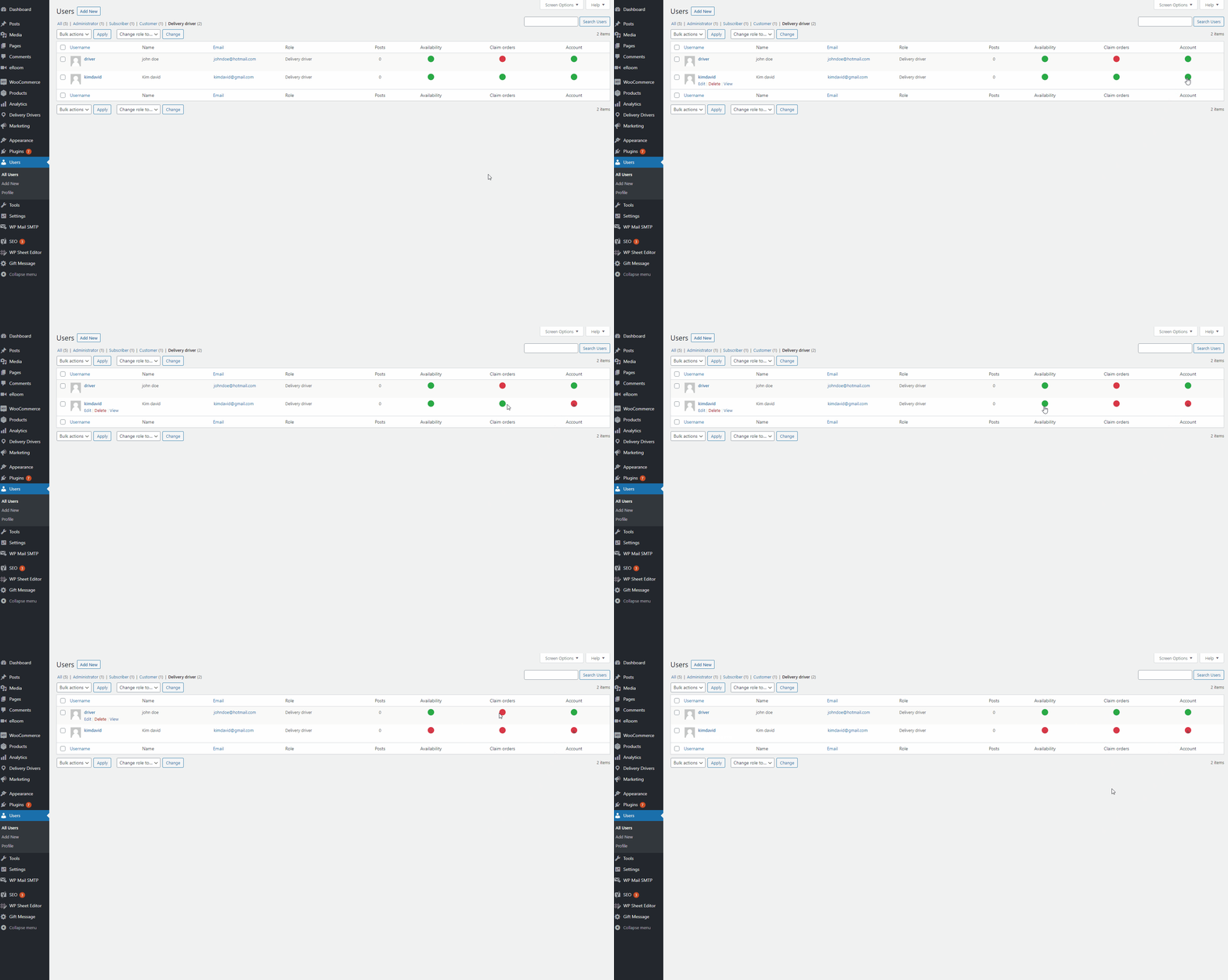
Manage GroDrivers
You can view all your GroDrivers’ info, active status, available status, and claim permission status on the admin user’s screen. In addition, you can update each status easily with one click.